
Walking Progress Map for Your City
See how many streets you have explored, what remains, and how your city challenge develops across recorded walks.

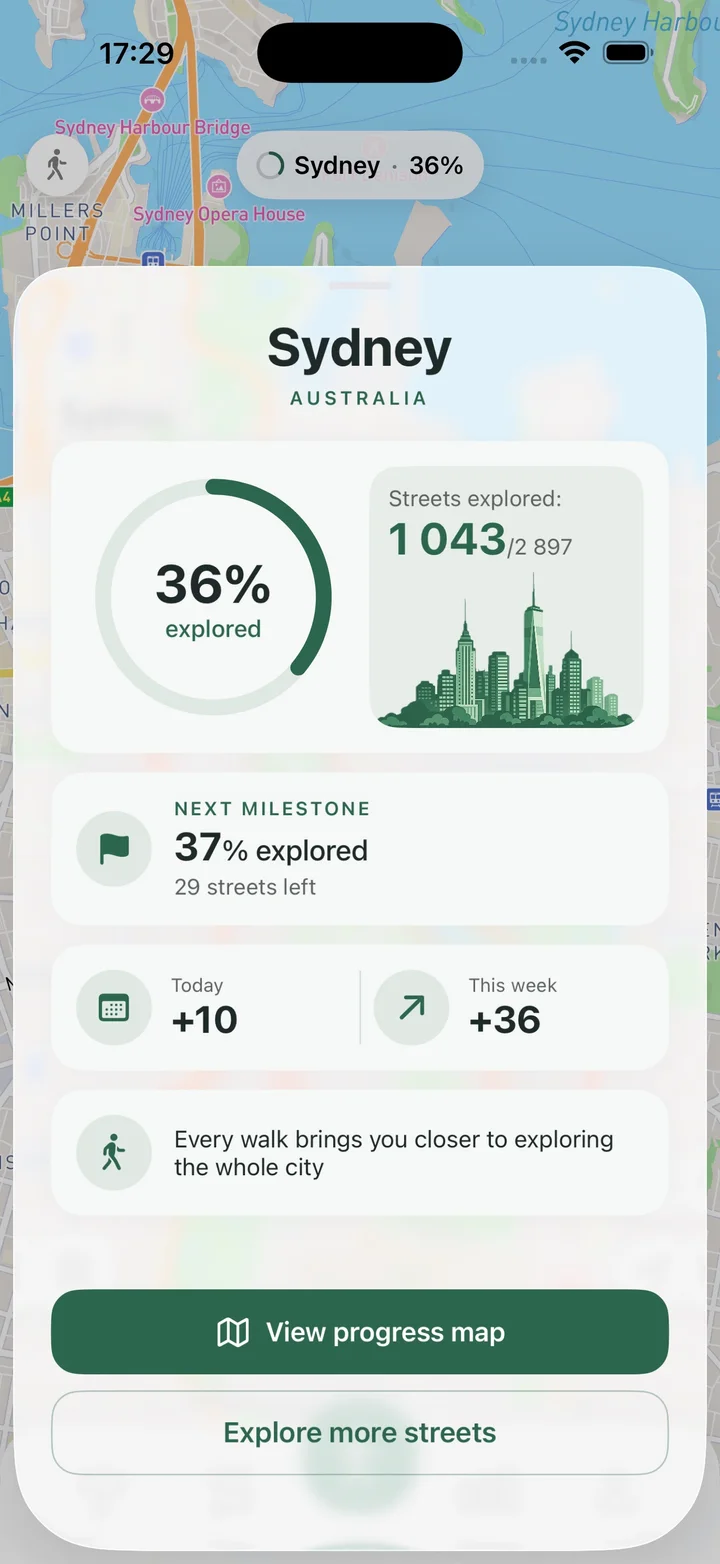
What this feature does
City progress summarises recognised street visits for the selected city. Its completion percentage compares explored streets with the city's counted street set, excluding skipped streets. It is a street count, not the percentage of land area or GPS distance you have covered. Check the selected city and its available street data when interpreting the result.
Real Streets capabilities
- Streets explored and the completion percentage summarise the selected city's recognised street visits.
- The street list separates Visited, Remaining, and Skipped so you can inspect the counts.
- Today and This week show recent new street discoveries, rather than every repeat visit.
- Next milestone offers a smaller goal within the city challenge.
- View progress map opens the selected city's progress map preview.
- Custom Areas give a separate view of street progress within a boundary you draw.
How it works
Choose the city
Tap the city name and percentage on the main map. If the app offers several cities or Areas, select the city you want to review and check its name in City progress.
Read the counts
Look at Streets explored, the percentage, Today, and This week. Tap Streets explored to inspect Visited and Remaining. Use View progress map for the city's map preview.
Choose a remaining street
Open Remaining, inspect a nearby street, and plan your next outing. After recording and finishing the walk, compare its saved route with the street list and city counters.
Practical ways to use it
- Choose a remaining street after checking the city's overall progress, rather than treating every saved route as a new discovery.
- Use a custom Area when you want a neighbourhood challenge instead of the whole city.
- Illustrative example: record a walk through familiar streets and one street still in Remaining. After finishing, check whether that street now appears in Visited and compare the counters. The result depends on recognition; no percentage increase is promised.
- Use Today, This week, and Next milestone to pick a manageable next outing.
FAQ
What does the city completion percentage measure?
It measures recognised explored streets relative to the selected city's counted street set. Skipped streets are excluded. It does not measure the fraction of the city's surface area, distance, or sidewalks you have walked.
Why can a new street leave the displayed percentage unchanged?
The city percentage is displayed as a whole number rounded down. In a large street set, one recognised discovery may increase Streets explored without moving the displayed percentage. Check the street count and Visited as well as the percentage.
Does another walk along visited streets add city progress?
Repeat visits do not add another new street to the city total. You can still record the route and review its activity stats in Route History.
How do Custom Areas differ from City progress?
City progress uses the selected city's street set. A custom Area uses the boundary you draw for a smaller challenge. Check which city or Area is selected before comparing percentages or remaining streets.
Is City progress the same as Fog of War?
No. City progress counts recognised streets. Fog of War is a visual map layer that reveals areas around your recorded routes. A revealed patch of map is not proof that every street within it belongs in Visited.
What should I check if a count looks unexpected?
Confirm the selected city or Area, check Visited and Skipped, and inspect the saved route. City totals depend on the street data available to the app. For a specific recognition issue, send Streets support the city, street, walk date, and app version.
Related guides
Make your next street visible
Record a walk in Streets, review your city progress, and choose a suitable street from Remaining for next time.