
GPS Walking Tracker for iPhone
Record a walking route on iPhone, pause when you stop, and review the saved map alongside your recognised street discoveries.

What this feature does
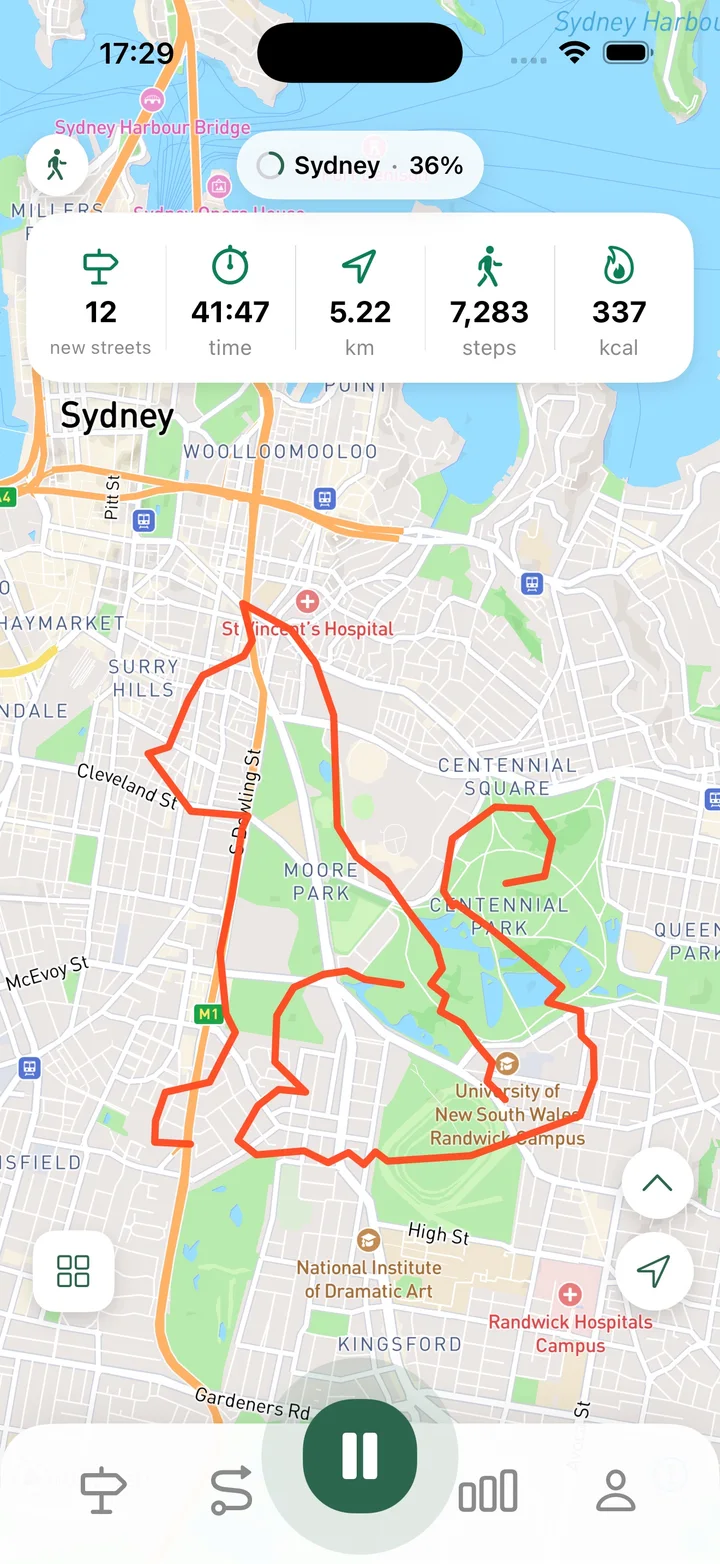
Streets records location while a walk is active and saves the route with time, distance, steps, and calorie estimates. The GPS line answers where you went; the street list answers which visits the app recognised. Active recording supports a locked screen and background use with location permission. Autosaved progress helps protect recorded data, but does not guarantee an uninterrupted track when iOS or location availability interrupts recording.
Real Streets capabilities
- Choose Walk for a walking outing; Run, Bike, and Vehicle are separate activity modes.
- Record a GPS route with distance, time, steps, and calorie estimates.
- Pause recording and use Resume walk to continue the same outing.
- Finish walk saves the recording for review in Route History.
- View route shows the saved line; route details help you review stats and discoveries.
- Background location updates support active recording while the screen is locked or another app is in front.
- Active progress is saved during recording, with recovery handling for interrupted sessions.
How it works
Choose Walk and start
On the main map, tap the activity selector in the upper-left corner and choose Walk. Tap the start control at the bottom, allow location access when asked, and check that the timer begins after the countdown.
Pause or continue
Tap the pause control when you want to stop recording temporarily. Choose Resume walk to continue the same outing. Walking while it remains paused does not add that part to the active recording.
Finish and review
Tap pause, then Finish walk. Open Route History using the route-shaped tab icon, find the saved walk, and choose its three-dot menu > View route. Check Visited separately for recognised streets.
Practical ways to use it
- Save a neighbourhood walk and inspect the actual recorded line afterward.
- Pause at a stop, then resume when you are ready to record again.
- Put the iPhone away with an active recording, then check the route after unlocking it.
- Compare a recorded route with Visited when a street you expected has not appeared in your city progress.
FAQ
Which location permission does Streets need?
Enable Location Services for Streets in iPhone Settings > Privacy & Security > Location Services > Streets. The app requests While Using the App access and accepts that permission or Always access if already granted. Enable Precise Location for more specific positions. While Using the App is sufficient to start recording; Always is not required.
Can I lock the screen or use another app while recording?
Streets enables background location updates for an active route, so locking the screen or bringing another app forward does not itself finish the walk. Location permission, available location data, and iOS can still affect continuity. Check that recording started before putting the phone away.
What if I force-close Streets?
Swiping the app away is different from locking the screen or switching apps. Do not treat it as a way to keep recording. Streets saves active progress and has interrupted-session recovery, but cannot promise to record the interval when the app is not running. Reopen Streets, inspect the session, and confirm its state before continuing.
What happens if the GPS signal becomes inaccurate?
The saved line may be displaced or incomplete, and street recognition can differ from what you expected. Review View route and any accuracy warning, check location access and Precise Location, and allow the phone to regain a usable position. Missing positions are not a reliable record of where you walked.
Does saving a route mean every street was counted?
No. GPS recording and recognised street visits are separate records. Use Route History to inspect the outing and the city's Visited list to check particular streets. Recording must be active for the part you want to track.
Can I keep or export the saved route?
Completed walks stay in Route History for review. The GPX export guide explains the available route export flow. Check any access prompt in the app before using a restricted tool.
Related guides
- Route History and Saved Route Details
- Export and Share Walking Routes
- How to Choose a GPS Walking Tracker for iPhone (English guide)
- Why Didn't My Walk Count a Street? (English guide)
- How to Track Streets You Have Walked on iPhone (English guide)
- Why Walking Route History Matters (English guide)
- Why Didn't My Walk Count a Street?
Record a walk you can review
Install Streets, choose Walk, and try a short familiar route. Check the saved map and your street discoveries afterward.