
How to Save and Organise Places on Your Walking Map
Save places as map pins in Streets, add names and notes, and find them again from your map or Saved places list.
A good walking map can hold more than the streets you have explored. Save a park entrance, a café to try, or a meeting point so you can find it again when planning your next walk.
In Streets, saved places appear as pins on the map. Each pin can have a name and a note, and the Saved places list brings your locations together. This guide uses one example: Apple Park Visitor Center in Cupertino, with the note Meet here before the walk.
Choose a place on the map
- Open the main map in Streets and move to the area you want to save.
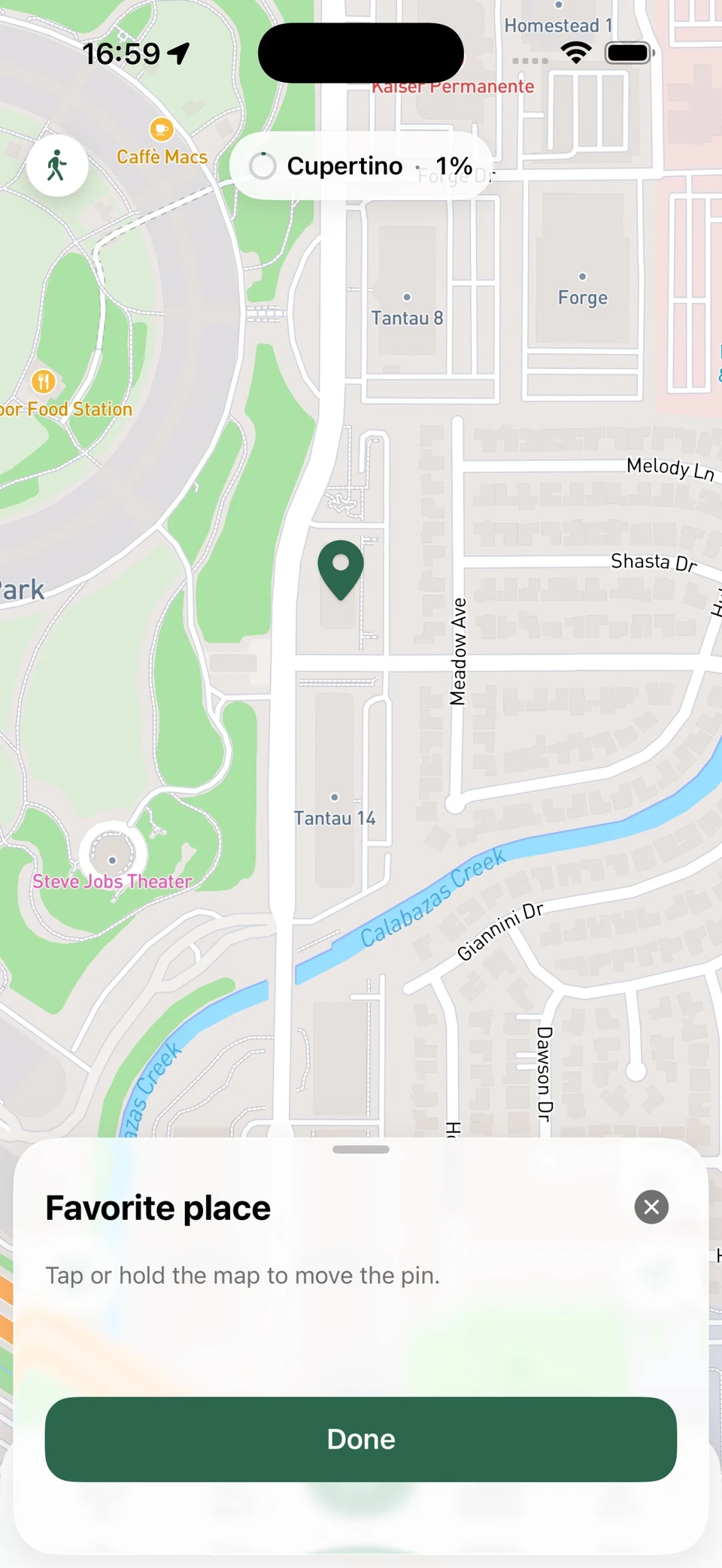
- Touch and hold the spot on the map, then release to open the Favorite place form.
- To refine the location, tap Change position.
- Tap or hold the map to move the pin to the spot you want.
- Tap Done to return to the form.
For a meeting point, place the pin at the entrance you plan to use. Zooming in first makes it easier to choose a precise spot.
Add a name and a note
Use Name for a short, recognisable label. Use Note for the detail you would otherwise forget, such as where to meet or why you want to return.
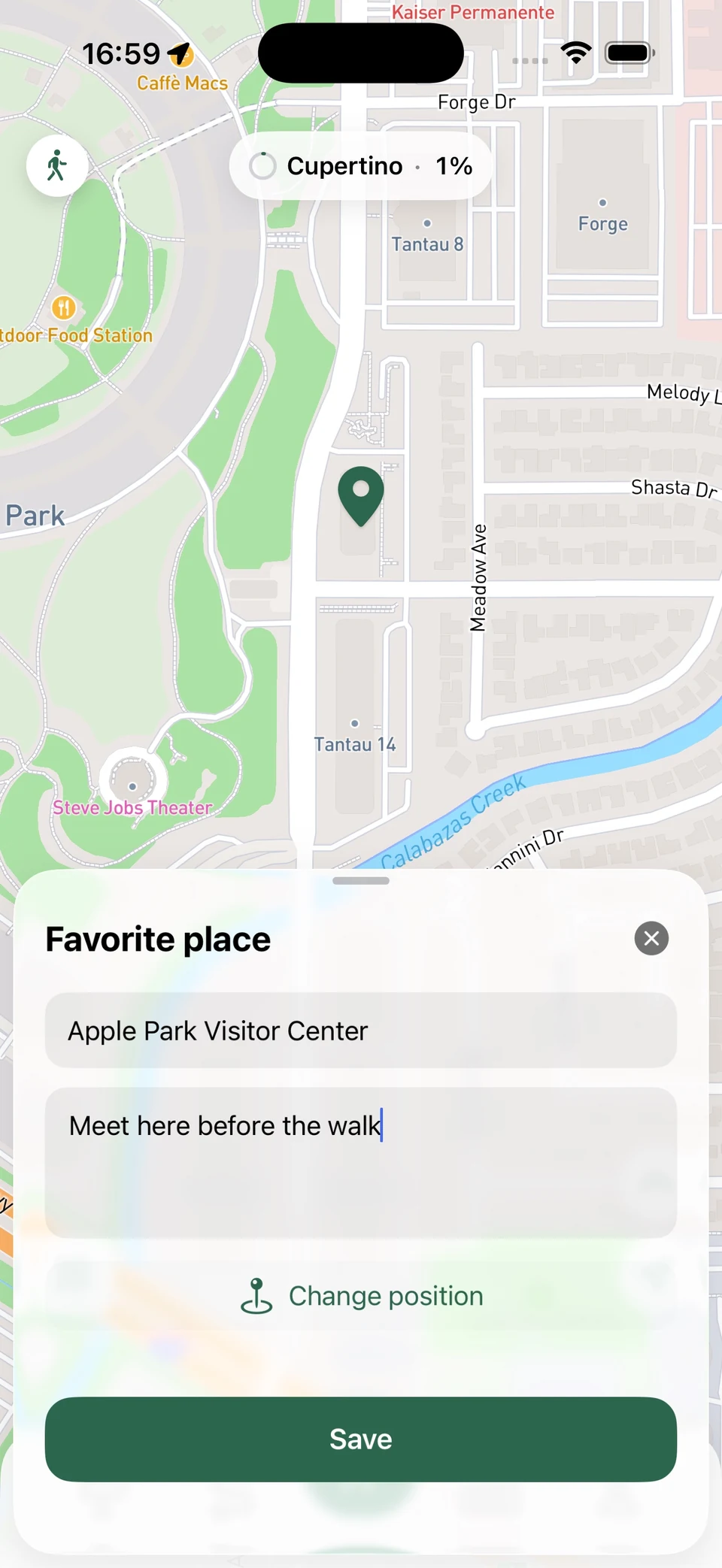
For the Cupertino example, enter:
- Name: Apple Park Visitor Center
- Note: Meet here before the walk
Tap Save to keep the place. The pin stays on your map, and the place is added to your saved list. After adjusting a position, Done returns you to the form; Save stores the place.
Open a saved place
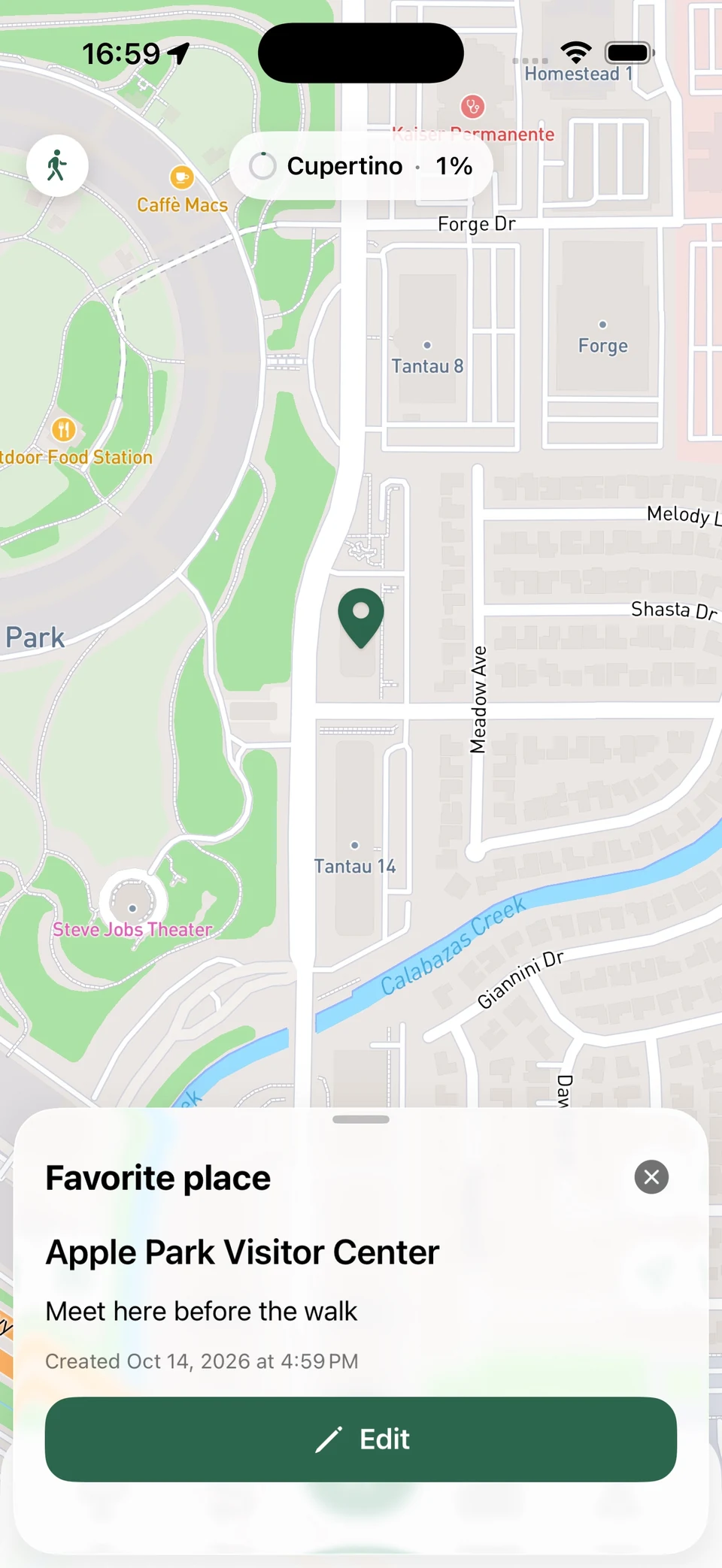
Tap a saved pin on the map to open its Favorite place card. The card shows its name, note, creation date, and an Edit button.
In the screenshot below, the Apple Park Visitor Center pin and the meeting note are visible together. You can check the location and its context at a glance.
Find a place in your saved list
- On the main map, tap the upward chevron on the right to expand the map controls.
- Tap the pin-shaped button to open Saved places.
- Select a place in the list. Streets moves the map to its pin and opens the details card.
The list shows each place’s name and its note when one is present. It is useful when a pin is outside your current map view. Tap Add another place in the list to choose a new location and save it with the same form.
Edit, move, or remove a place
Open a saved place and tap Edit. Change its name or note, then tap Save.
To move the pin, tap Change position, choose the new spot on the map, and tap Done. Back in the form, tap Save to keep the updated location.
To remove a place you no longer need, tap the trash icon in the editor and confirm Delete.
Keep useful context for your next walk
A small collection of places can make future walks easier to plan: an entrance to a park, a viewpoint worth revisiting, or a place to meet a friend. Give each pin a clear name and keep its note specific.
Use saved places alongside your walking progress map and route planning tools to decide where you want to go next. For other ways to work with the map, see Map Tools for Urban Walks.