
How the Atlas Map Upgrade Works in Streets
Learn what carries over to Atlas and why your street count can change.
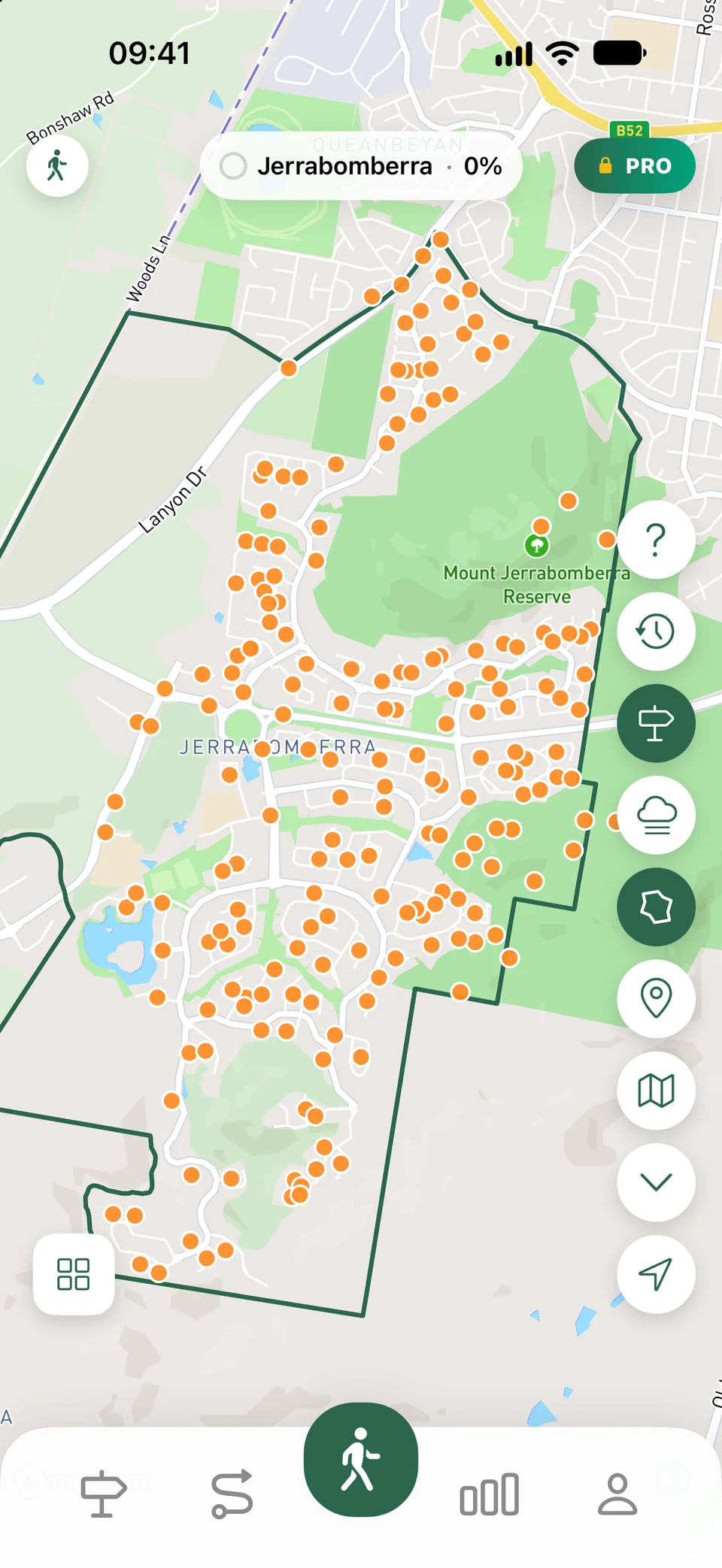
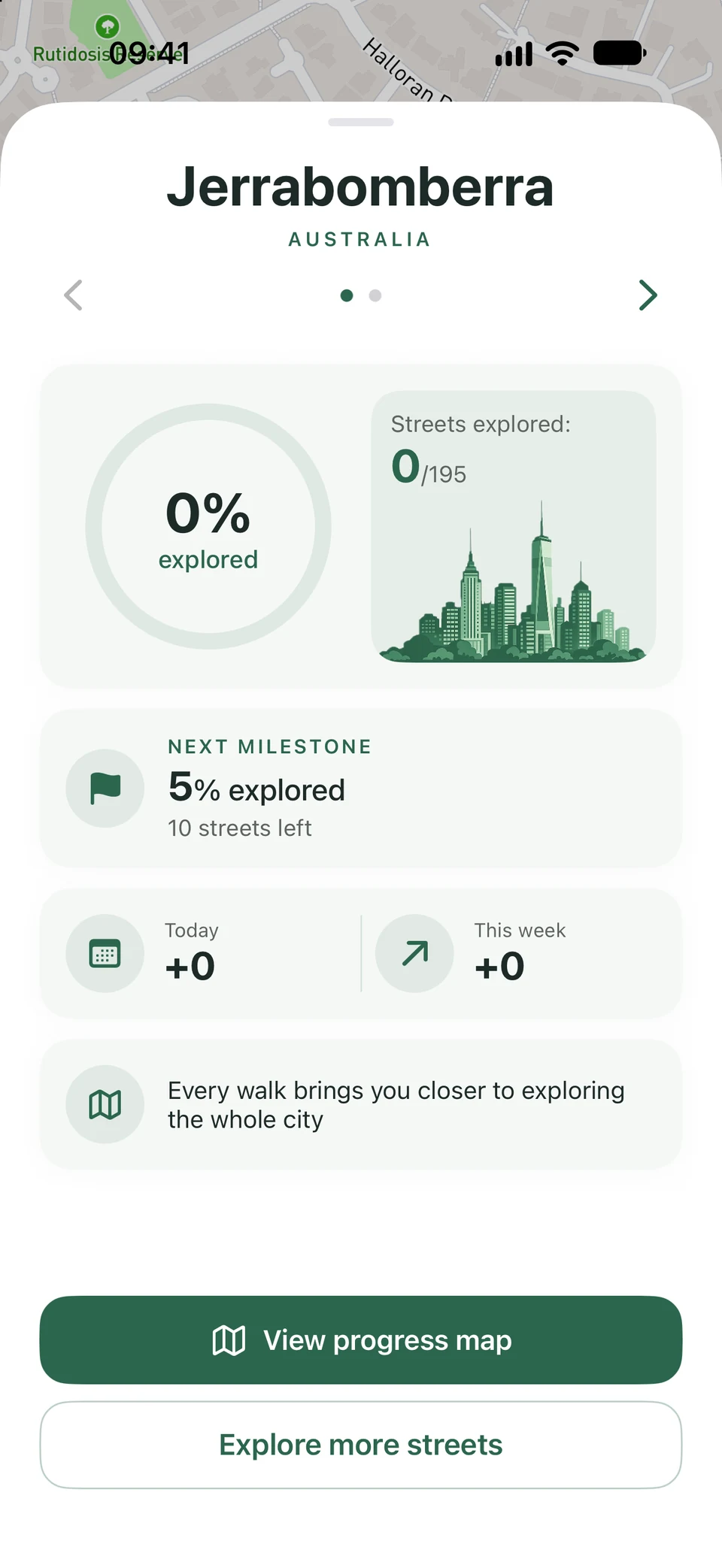
Streets recognises explored streets by comparing your saved GPS routes with its street map. Atlas updates that map. You can choose to move your history across when the option appears. (4.7.32)
What differs from the previous map?
Atlas may list different streets in the same city. The route line shows the path your iPhone recorded; the list shows the streets that Streets could match to it.
Will I keep my walks and areas?
Saved routes carry over and the previous history is still available. The boundaries of your custom areas are retained and progress is recalculated. If past routes can’t be matched in an area, progress may change and the original area remains in the previous history. route history · custom areas
Why has my percentage changed?
Past walks can be matched to more or fewer streets on Atlas. If there are more streets in the city total, the same number explored can give a smaller percentage. There’s no need to begin again. Check the selected city or area, compare visited and remaining streets and open a saved route. city progress
Why isn’t the option showing?
Streets 4.7.32 introduced the Atlas map upgrade. The upgrade is being made available gradually, so it may not appear for everyone at the same time. If you don’t see New map, carry on using your usual map and Route History. Reinstalling, resetting progress or recording the walks again isn’t necessary. If you’re already on Atlas, you don’t need to change maps again.
How do I make the switch?
Open New map in the Streets tab and read Switch to the new map. Finish your current walk before starting and leave Streets open while your data transfers. Keeping the previous map is fine. If anything is missing afterwards, share the app version, city or area and the date you walked. Contact support