
How the Atlas Map Upgrade Works in Streets
Find out how Atlas updates the street map, what happens to saved walks and custom Areas, and why city progress can change.
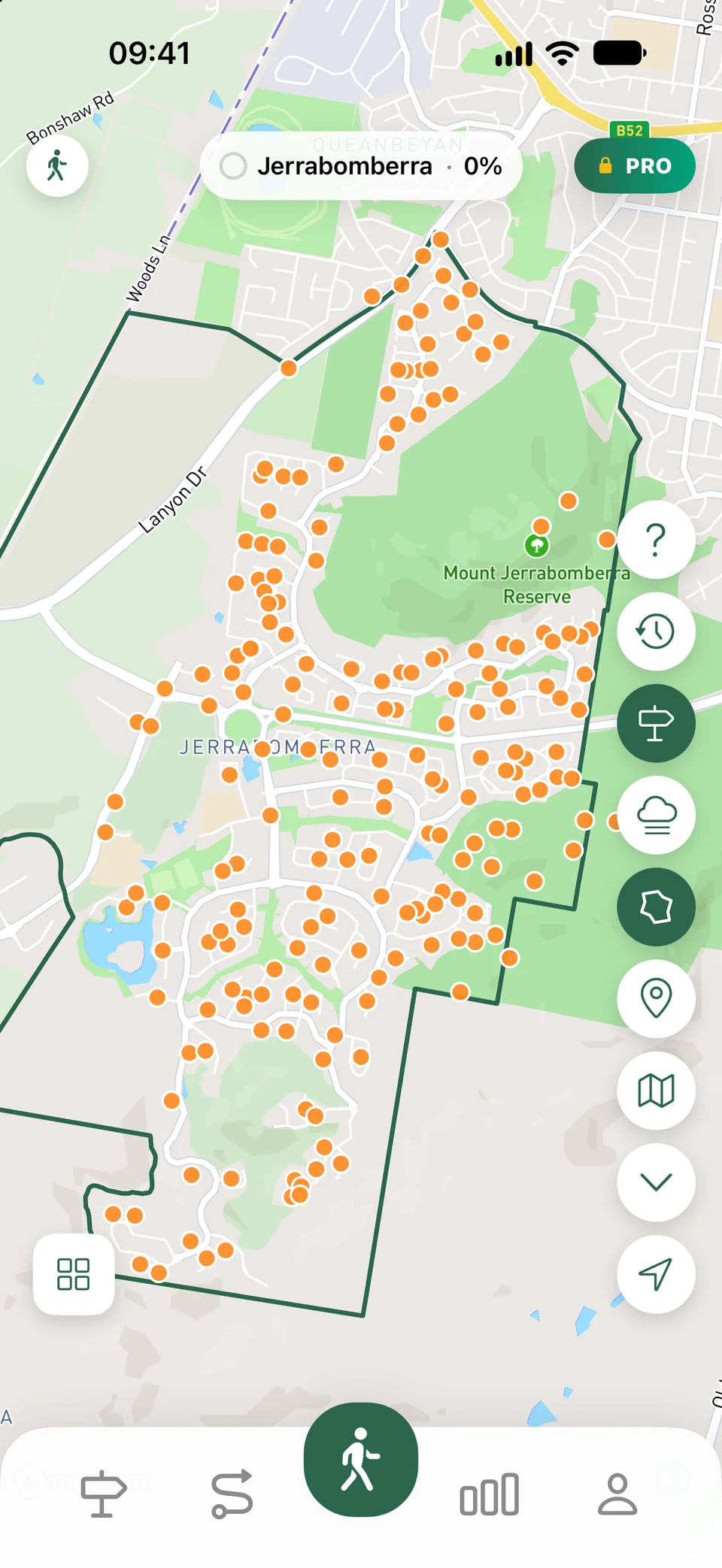
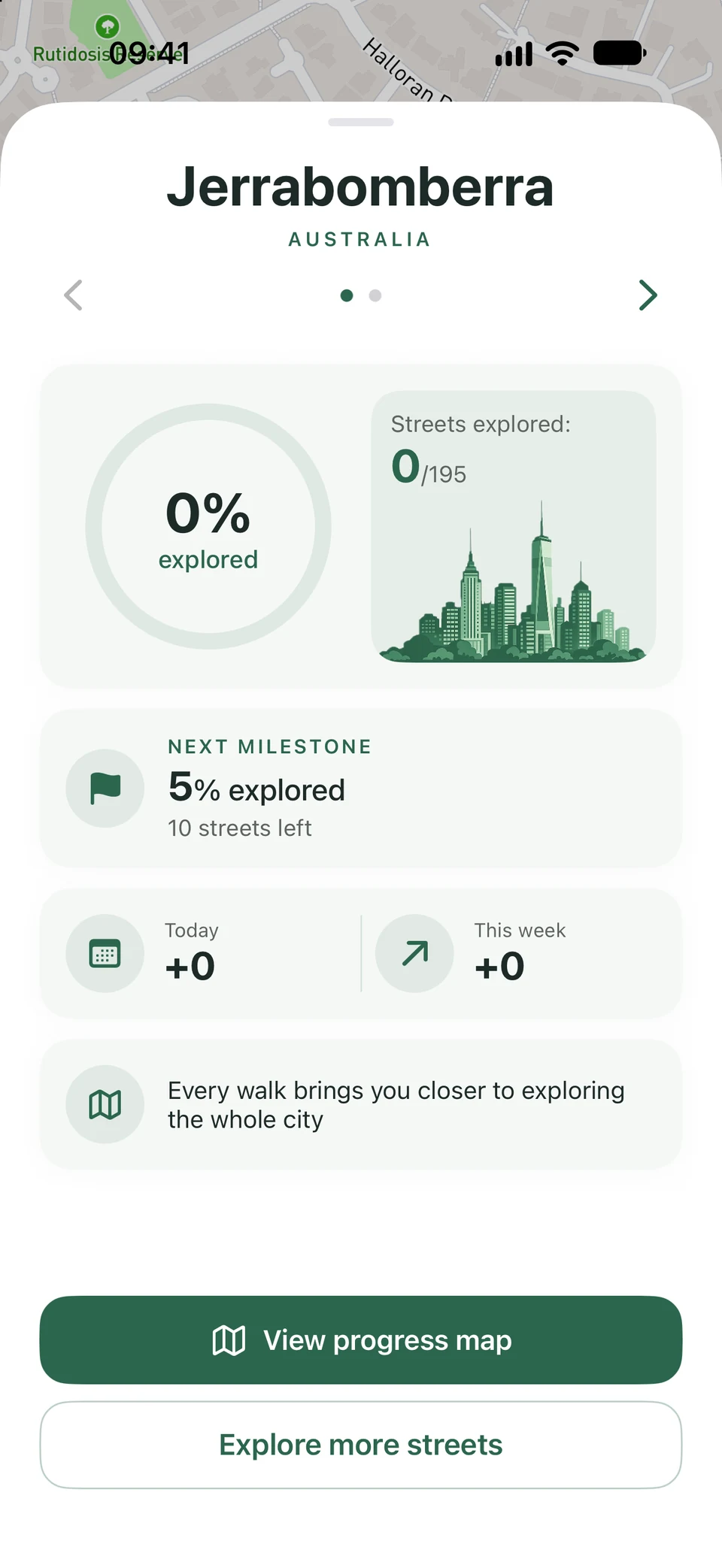
Streets uses your saved GPS routes to work out which streets you have explored. Atlas updates the street map used for that comparison. Streets 4.7.32 introduced an optional way to switch from the previous map and bring your walking history with you.
What changes on the new map?
The previous map and Atlas can contain different street lists for the same city. Atlas uses updated street data and checks your recorded path against it. That means the saved line of a walk and the list of streets recognized from that walk are two different things. The line shows where your iPhone recorded you walking. The street list shows what Streets could match to the selected map.
What happens to my walks and custom Areas?
Your saved routes carry over when the switch completes, and your previous history remains available. You can still use Route History to review a saved walk.
The switch also brings across the custom Areas you drew, so you can keep using the same neighborhood boundaries. Streets recalculates street progress inside each Area using the updated map. If some past walks cannot be matched in an Area, its new progress can differ and the original Area remains in Previous history.
Why did my street count or percentage change?
City completion compares the streets you have explored with the street list for that city. If Atlas counts more streets in the city, the same number of explored streets can represent a smaller percentage. The explored count can also go up or down when Streets checks past walks against the new map.
You do not have to start exploring your city again. If a number surprises you, first check that you selected the same city or Area. Compare Visited and Remaining, then open a saved walk to check the route itself. See the city progress guide for help reading the counts.
Why is the upgrade missing on my iPhone?
Streets 4.7.32 introduced the Atlas map upgrade. The upgrade is being made available gradually, so it may not appear for everyone at the same time. If you do not see the New map option, keep using your current map and Route History. There is no need to reinstall Streets, reset progress, or record your old walks again to get the offer. If you’re already using Atlas, you do not need to switch again.
What should I do if Streets offers the switch?
If Streets shows New map on the Streets tab, open it and read the information under Switch to the new map before starting. Finish any active walk first and keep Streets open while the transfer runs. You can also continue using the previous map if you prefer.
If a saved route or Area appears missing after a completed transfer, contact Streets support with your app version, city or Area name, and the date of the affected walk.