
Random Walking Route Generator for iPhone
Let Streets suggest a walking route from your current location. Set one walking target, choose a loop or open route, and inspect the map before recording.

What this feature does
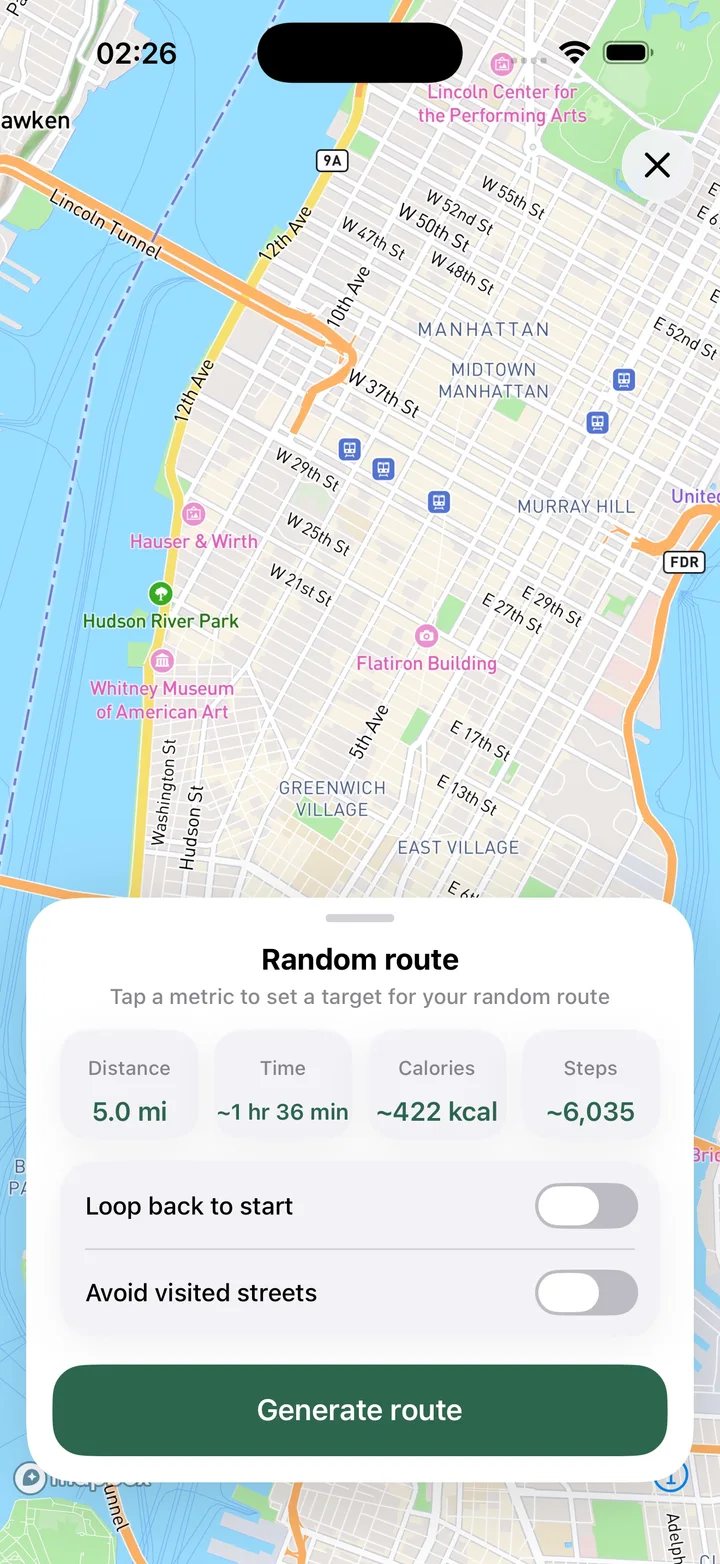
Random route is a tool inside the Streets app for iPhone. Distance, Time, Steps, and Calories are four ways to set one route target; Streets converts the choice into a distance and updates the other estimates. The resulting route follows the street network, so the actual distance and your walking time can differ from the target. Generate in the app where you intend to start, then review the suggestion.
Real Streets capabilities
- Set a target with Distance, Time, Steps, or Calories in the walking mode.
- Loop back to start requests a route returning to your starting position; switch it off for an open route.
- Avoid visited streets uses recorded route history to seek a result with less overlap.
- Preview the generated route on the map with its distance and estimated duration.
- Use the circular-arrow generate control after a result to request another suggestion.
- Start route keeps the suggested plan and starts the recording flow.
How it works
Set the walking target
Select Walk, open Map tools with the four-square grid button, and choose Random route. Tap Distance, Time, Steps, or Calories, choose a value in Set a random target, and tap Apply.
Choose options and generate
Enable Loop back to start for a circular walk or leave it off for an open route. Use Avoid visited streets if you want less repetition. Tap Generate route, then review the result, its distance, and its endpoint on the map.
Review, change, or start
Request another suggestion with the circular-arrow generate control if needed. Check the target and switches again before regenerating. When the plan suits you, tap Start route and confirm the recording timer starts after the countdown.
Practical ways to use it
- Illustrative example: choose Time, set 30 minutes, and enable Loop back to start. Review the resulting distance and estimated duration; the target does not guarantee a 30-minute finish.
- Use Distance when you have a preferred walk length but do not want to select each waypoint.
- Try Avoid visited streets after recording walks in Streets, then inspect the result for familiar connecting streets.
- Choose the manual Walking Route Planner instead when a specific destination or sequence of streets matters.
FAQ
Can I generate a walking route on this website?
No. The generator runs inside Streets for iPhone. This page describes its options, and the linked guide explains the full workflow in the app.
Are time, steps, and calories exact route requirements?
No. They are alternative ways to set one distance-based route target using estimates for the selected activity. Steps and calories are not guaranteed outcomes. Check the displayed values after Apply, especially when choosing a large target.
Does Avoid visited streets remove every familiar street?
No. Streets evaluates route candidates using saved route history and chooses a result with less overlap among the candidates it finds. Previously walked streets can remain, especially near the start or where the road network offers few alternatives. Walks you never recorded in Streets are not part of that history.
Can I create a circular walking route?
Turn on Loop back to start before generating. The loop follows the available street network rather than drawing a geometric circle. Inspect it on the map before starting. With the option off, check the open route's endpoint and how you will return.
What if the suggested route does not suit me?
Use the circular-arrow generate control to try another suggestion, change the target, or adjust the options. Check the switches again for each generation. Use the manual planner if you need a specific destination. Review any access prompt before continuing.
Why can route generation fail?
Generation needs a current location and internet access. Check No internet connection, location, or low GPS accuracy messages first. The available streets and target can limit the result. For Unable to generate route, try a smaller target or different options; contact Streets support if the problem continues.
Related guides
Try a different walking route
Install Streets on your iPhone, choose a walking target, and review the generated map before starting your outing.