
Walking Cadence and Accurate Step Tracking on iPhone
Understand steps per minute, enable Accurate Steps, and use cadence to add useful context to walks and runs.
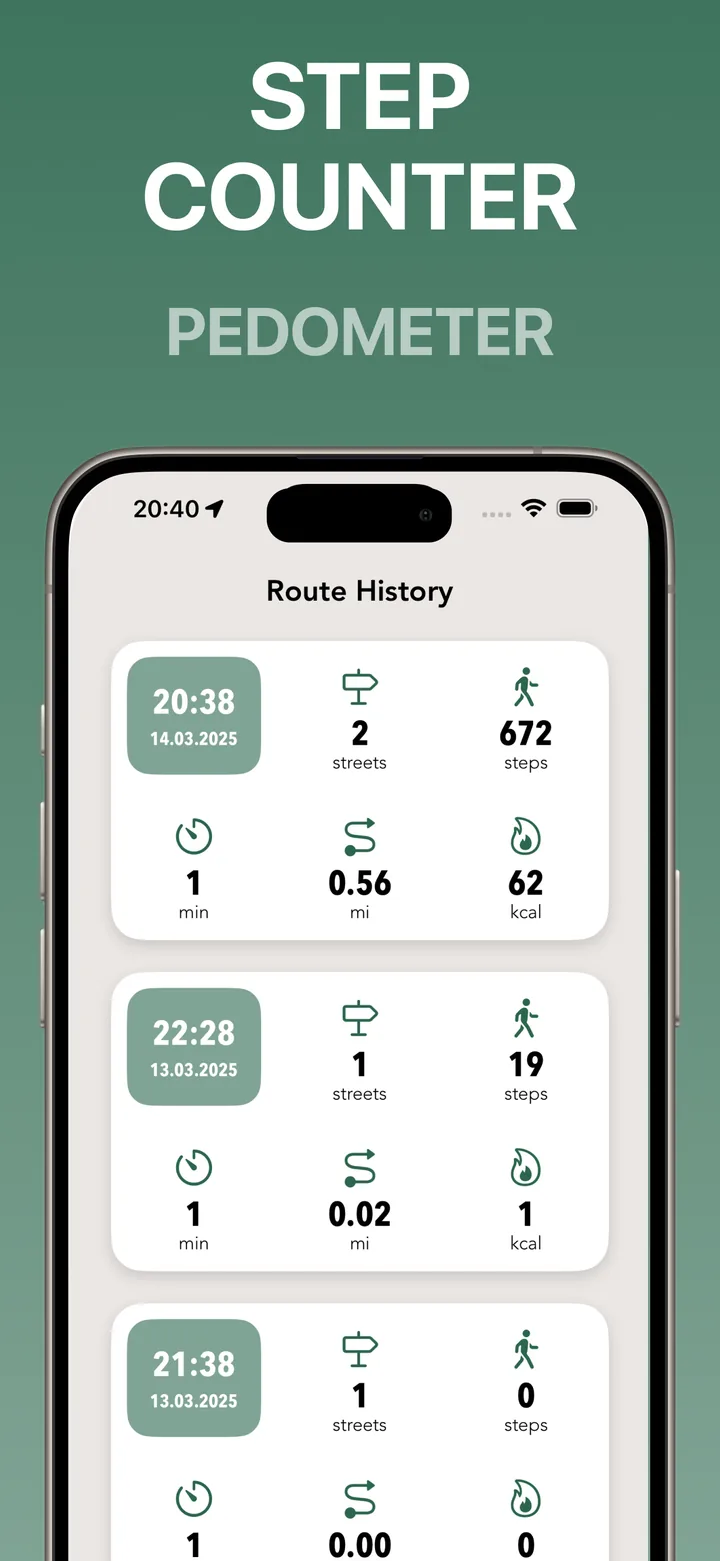
Step totals tell you how much you moved. Cadence adds another useful detail: how quickly those steps happened.
Streets 4.7.29 can use Motion & Fitness data from your iPhone to count steps directly during walks and runs. It can also show cadence in steps per minute, written as spm.
What walking cadence means
Cadence is the number of steps you take in one minute. If the route shows 110 spm, you were taking about 110 steps each minute at that point in the walk.
Cadence is not a score and there is no single number everyone should try to reach. It changes with height, stride length, terrain, traffic lights, hills, fatigue, and whether you are walking or running.
The most useful comparison is often with your own routes. A relaxed walk, a brisk commute, and a run should naturally have different patterns.
Enable Accurate Steps when you want iPhone data
Accurate Steps uses Apple’s Motion & Fitness access to read step counts from the iPhone during walking and running routes. Streets asks before using this data, and the setting can be changed later.
If access is off, open iPhone Settings and allow Motion & Fitness for Streets. The app only uses this source after you choose to enable it.
The regular step counter and walking stats remain connected to the route, so steps are easier to understand beside time, distance, calories, and the map.
Read cadence as context, not pressure
Cadence can help explain why two routes with a similar distance felt different. One might include steady movement, while another includes crossings, photos, hills, or long pauses.
It can also show the transition between activities. A walking segment and a running segment have different movement patterns, and Streets keeps those segments inside the same route when you switch activity modes.
Avoid treating every temporary change as a problem. A short drop in cadence may simply mean you slowed for traffic or stopped to look around.
Use steps and cadence together
Steps answer how much movement happened. Cadence answers how that movement was paced over time. Together they make Route History more useful:
- Compare relaxed and brisk walks without relying only on total time.
- See whether a run stayed steady or changed across the route.
- Understand why two routes of similar length produced different step totals.
- Keep walking and running metrics separate from cycling or vehicle segments.
Distance and pace still matter, but steps and cadence provide a view that is tied directly to your movement.
Focus on a route that fits the day
You do not need to optimize cadence to benefit from it. Use the number as a reference, then focus on the walk itself: the streets you explored, how the route felt, and whether it matched your goal.
Accurate Steps and live cadence are included in Streets 4.7.29, alongside mixed activity routes and a redesigned Route History.